
Gallery
Google LLCPhotography
4.27.43K Reviews
- Version
- 1.9.4.930218541 release
- Installs
- 1.00B
- Age Rating
- Everyone
Screenshots
Our Review of Gallery
 Analysis by Appyee
When I’m trying to find one photo among months of screenshots, family pictures, and everyday snaps, I want a gallery that gets me to the image without turning the task into a project. Gallery is a free photography app from Google LLC, and its appeal is straightforward: it gives you a place to browse and manage pictures and videos without asking you to pay to get started. I see it as a practical option for people who want a familiar, low-friction way to look through a phone library rather than a full photo-editing workstation.
Your Digital Photo Album
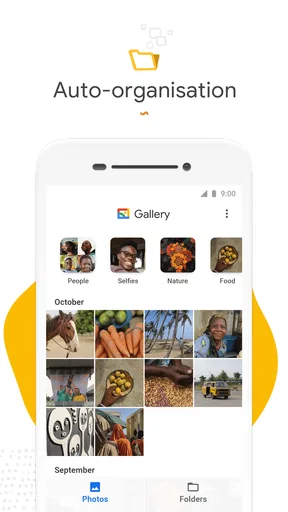
First things first, Gallery is all about organization. It’s like having your own digital librarian to sort through thousands of pictures. The app automatically categorizes photos by date, location, and even identifies faces. Sounds nifty, right? The facial recognition works surprisingly well, and it’s a breeze to locate that one picture from last summer’s road trip or your cousin’s wedding.
Design and User Experience
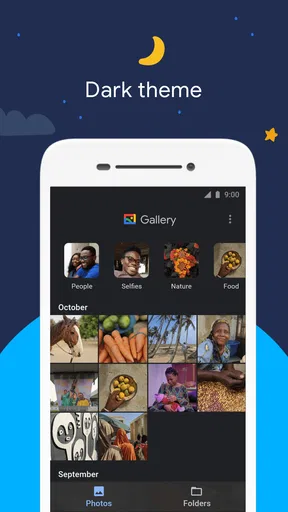
Let’s talk design. The app has a clean and intuitive interface. You’re greeted with a minimalist layout that’s not overwhelming—a huge plus in my book. Everything is where you expect it to be, so you’re not fumbling around trying to figure out how to create albums or delete duplicates.
Navigation is smooth, and the app reacts quickly to commands. It supports gestures, which makes swiping through albums feel natural and fast. I didn’t experience any lag, even with my large library of photos.
Features That Stand Out
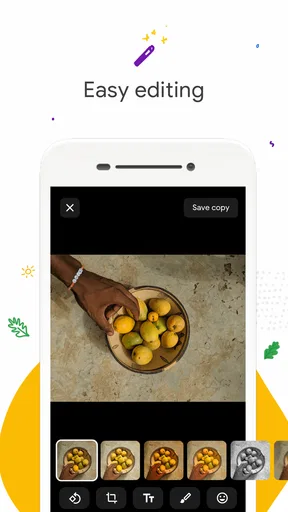
One of my favorite features is the editing suite. It’s not Photoshop, but for quick tweaks, it’s more than enough. You can crop, adjust lighting, and add filters with just a few taps. If you’re a fan of sharing perfectly polished snaps on social media, you’ll find this feature quite handy.
Another cool aspect is the slideshow option. You can turn a selection of photos into a beautiful slideshow, complete with music. It’s perfect for showing off during family gatherings or just reminiscing about good times.
Privacy and Security
Now, let’s get into privacy—super important these days. Gallery offers a secure folder option where you can stash your more private photos. It’s like your personal vault that only you can access. This is a lifesaver if you’re concerned about privacy breaches.
The app also promises not to share any of your photos unless you explicitly choose to do so. This transparency in data handling is something I highly appreciate.
Integration and Compatibility
Integration with cloud services? Check. If you’re juggling between devices, Gallery syncs seamlessly with Google Photos and iCloud. This feature ensures that your photos are safely backed up and accessible from any device, anytime.
The app is also well-optimized for various devices. Whether you’re using the latest phone model or an older version, Gallery runs smoothly. Plus, it doesn’t hog memory or battery life—always a bonus!
What Free Access Means in Practice
The app is free to install, which makes it easy to try as your everyday viewer before deciding whether it fits your habits. I value that when I’m choosing a gallery: I can see how it handles my actual camera roll rather than committing money to a tool I may only use occasionally. Free access is a clear advantage for basic browsing and sorting, but it shouldn’t be confused with a promise that every service connected to a photo library is free. Cloud storage, mobile data, and other apps involved in backing up or sharing can have their own terms.
That distinction matters if your main goal is long-term backup. A gallery is where I look at and organize local images; a cloud photo service is what I rely on to keep another copy available if a phone is lost or replaced. I would check that the pictures I care about are backed up separately rather than assuming that simply viewing them here makes them safe elsewhere. For someone who only wants to browse photos on the device, the no-cost entry point is more than enough reason to test it.
Everyday Workflows That Make It Useful
A realistic use is sorting out a busy weekend after the fact. I might take pictures at a school event, save a few receipts, and capture screenshots of directions in the same afternoon. Instead of scrolling through everything in one long stream, I can use the date-based organization to return to that day, review the images, and decide which ones deserve an album or a quick edit. That small habit is more useful than trying to create a perfect filing system for every picture as soon as I take it.
There’s also a handy distinction between finding an image and preparing it. If I only need to send a picture to a friend, a crop or lighting adjustment in the gallery can save me from opening a separate editor. If I’m making a careful portrait retouch or composing several images, I’d move to a dedicated editing app instead. I treat the built-in tools as a quick finishing step, not as a replacement for software designed for detailed work.
One practical tip is to use albums sparingly and purposefully. A few collections for recurring needs—such as travel, family events, or documents I need to find again—are easier to maintain than an album for every small occasion. Date browsing can do most of the locating, while albums help with pictures I expect to revisit or share. This keeps organizing from becoming another chore and makes the app more useful over time.
Where a Gallery App Fits Among Alternatives
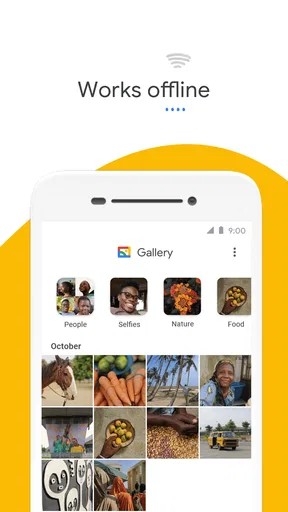
Compared with a phone’s default photo viewer, this kind of dedicated gallery is most valuable when you want a more focused place to scan and manage your camera roll. The built-in viewer may be enough if you only open recent pictures now and then; I’d choose a separate gallery when I regularly need to jump back to older dates, make quick edits, or keep selected images apart from the general stream.
It is different from a cloud-first photo library, too. Those services are often the better choice when your priority is automatic backup and access across several devices. A gallery is more naturally suited to browsing what is on the phone and handling it there. I would not choose this app alone as my entire backup plan, and I would not expect it to offer the deep cataloging, collaboration, or advanced editing found in specialist tools. Its value is in being a convenient middle ground rather than trying to do every photo job.
Privacy, Sharing, and a Useful Check
The secure folder is helpful when I want certain pictures kept out of casual browsing, but I would still think about the limits of any on-device privacy feature. A private folder can reduce the chance that someone casually scrolling through the main library will see an image; it is not a substitute for protecting the phone itself with a screen lock or being careful about what I send to other people. Before moving important images, I’d also make sure I understand how that folder behaves if I change devices or reset the phone.
For sharing, my rule is to open the image and check the recipient and destination before sending. A gallery can make selecting a group of photos quick, which is convenient, but it also means it is worth pausing before confirming a batch. That is especially true when personal pictures sit beside screenshots or documents. Convenience is useful only when it does not make an accidental share easier.
Who Gets the Most Value
I’d recommend trying it if your phone is where you take and keep most of your pictures, and your main frustrations are finding older shots, making simple corrections, or keeping a few personal images separate. It also suits someone who wants a free, uncomplicated starting point and does not need a professional workflow. Google LLC’s photography app has broad reach, with over one billion installs and an average rating of 4.2 from around 604,000 ratings, which suggests many people use it, though popularity alone cannot tell you whether its approach matches your routine.
I would steer a serious photographer toward a more capable editor for detailed adjustments, and someone who needs dependable off-device copies toward a dedicated backup service. People who want elaborate tagging, shared family libraries, or a carefully controlled archive may also prefer a tool built around those needs. The best choice depends less on how many pictures you own than on what you need to do with them after taking them.
Compatibility and What to Check First
The current release is version 1.9.3.913579239, and the listed minimum operating system is Android 8.0. It is rated for everyone, so its audience is broad, but compatibility still comes down to the software on your particular device. Before relying on it as your main gallery, I’d install it and try the tasks I actually care about: open older photos, create a small album, edit a copy, and see whether the images I expect are visible. That is a better test than judging a gallery by its first screen.
One more sensible check is whether the app is showing the library you expect. Photos may be stored in different folders, and people often mistake an image that is not visible in a particular view for one that has disappeared. I would search or browse the relevant date and folder before deleting duplicates or cleaning up storage. A few minutes of checking can prevent an irreversible mistake, especially when a screenshot or document photo matters more than it first appears.
The Final Word
In a world where our phones are our cameras, Gallery is a must-have for keeping everything organized and easily accessible. It’s user-friendly, packed with useful features, and respects your privacy. Whether you’re a photo hoarder like me or just want to keep your memories neatly sorted, this app is worth a shot.
So, if you’re ready to take control of your photo collection, why not give Gallery a try? You might just find it’s the digital assistant you never knew you needed.
My verdict is to try it if you want a free place to browse and tidy everyday photos, while keeping a separate plan for backup and turning to specialist apps when the job gets demanding. It is not the right pick for someone expecting a complete photo studio or an all-in-one cloud archive. For ordinary camera-roll life, though, the balance of easy browsing and quick tools makes it a sensible app to test. Google’s gallery has been available since July 23, 2019, and its long presence does not remove the need to check how it works with your own device and habits.
Privacy and Permissions
See what permissions an app requests and how it handles your data.
- Photos/Media/Files
- read the contents of your USB storage, modify or delete the contents of your USB storage
- Storage
- read the contents of your USB storage, modify or delete the contents of your USB storage
- Other
- view network connections, measure app storage space, full network access, run at startup, set wallpaper, prevent device from sleeping, read Google service configuration
Verdict
Strengths of Gallery
- User-friendly interface for easy navigation.
- High customization options available.
- Supports multiple image formats.
- Includes a built-in photo editor.
- Offers seamless cloud backup support.
Limitations of Gallery
- Ads can be intrusive at times.
- Limited free storage space.
- Editing tools lack advanced features.
- Some features require premium upgrade.
- Occasional performance lags reported.
Other Releases by Google LLC
View All
Google Calendar
Productivity4.6

Google Messages
Communication4.6

Tools4.0

Google TV
Video Players & Editors3.9
Similar Picks in This Category
View All
Google Photos
Google LLC4.4

Picsart AI Photo Editor, Video
PicsArt, Inc.3.9

B612 AI Photo&Video Editor
SNOW Corporation4.1

BeautyPlus-Selfie Photo Editor
PIXOCIAL TECHNOLOGY (SINGAPORE) PTE. LTD.4.5

Remini - AI Photo Enhancer
Bending Spoons4.1

FaceApp: Perfect Face Editor
FaceApp Technology Ltd4.3
You May Also Like
View All
Frequently Asked Questions
What features does the Gallery app offer?
The Gallery app provides a range of features, including photo and video storage, organization tools, and editing capabilities. Users can create albums, sort images by date or location, and apply filters or adjustments directly within the app. Additionally, some versions offer cloud backup to safeguard your media files.
Is the Gallery app compatible with both Android and iOS devices?
Yes, the Gallery app is designed to be compatible with both Android and iOS platforms. It ensures a seamless experience across devices, enabling users to sync their media collections. However, features may vary slightly depending on the operating system version, so it's worth checking the specific capabilities for your device.
Does the Gallery app support cloud storage integration?
Many versions of the Gallery app support integration with popular cloud storage services. This feature allows users to back up their photos and videos, freeing up device space without losing access to their media. Be sure to check the app’s settings for available cloud options and ensure your account is linked properly.
Can I edit photos and videos directly in the Gallery app?
Yes, the Gallery app typically includes basic editing tools for both photos and videos. Users can crop, adjust brightness, apply filters, and more. While these tools are sufficient for simple edits, those seeking advanced options may need to use dedicated editing apps for more complex adjustments.
Is my data secure in the Gallery app?
The security of your data in the Gallery app largely depends on the app's settings and your device's security measures. It's recommended to enable any available app locks or encryption settings. Additionally, using cloud backup adds another layer of protection, but ensure that you use strong, unique passwords for your accounts.
